

Odoo
Charge on your Odoo store with Ecart Pay, Latin America's leading payment gateway. This guide walks you through every step, from installation to your first real payment.
What you get
- An Ecart Pay button on your Odoo store checkout (Website / eCommerce).
- Payments with cards, bank transfers, cash and wallets, on a secure Ecart Pay payment page
(you never handle sensitive card data on your server). - Automatic order confirmation in Odoo when the payment is approved.
Contents
- Before you start
- Install the module
- Get your Ecart Pay credentials
- Configure the provider in Odoo
- Publish it on the checkout
- Run a test payment
- Verify the transaction
- Go live
- FAQ
- Support
1. Before you start
You need:
- An Odoo 19 instance (Community or Enterprise) where you can install modules.
- An Ecart Pay account. If you don't have one yet, create it at
ecartpay.com. - To test without real charges, use our sandbox environment:
https://sandbox.ecart.com/. There you get your test credentials
and validate the whole flow before going live.
2. Install the module
- Ask your technical team (or your Odoo partner) to install the
Payment Provider: Ecart Pay module. - In Odoo, go to Apps → Update Apps List, search for Ecart Pay and install it.
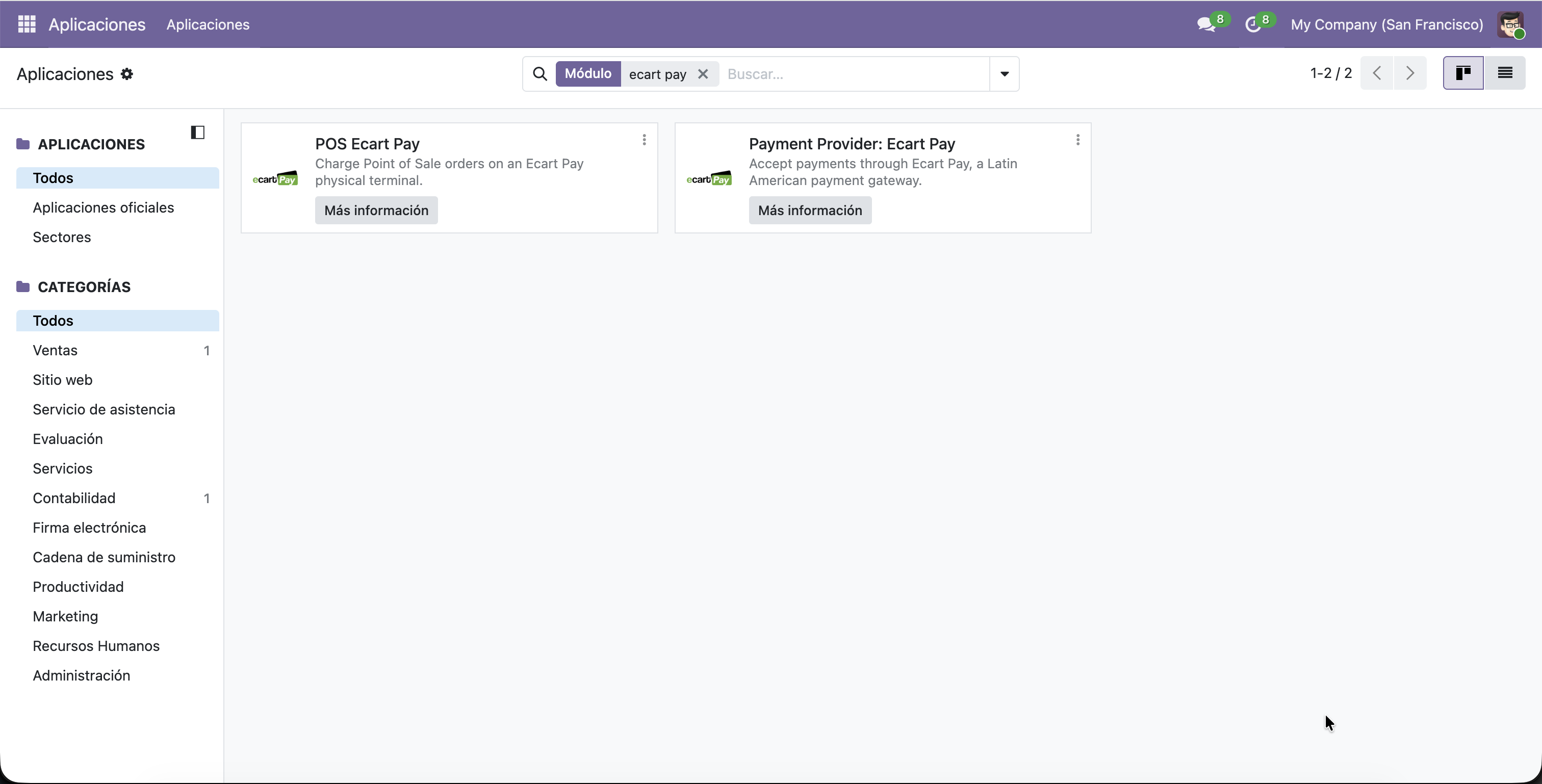
Image placeholder: Ecart Pay module in Apps
3. Get your Ecart Pay credentials
- Log in to your Ecart Pay panel. For test credentials, use the sandbox environment:
https://sandbox.ecart.com/. - Go to Dev Tools → Credentials.
- Copy your Public Key and your Private Key. You get one pair for test (sandbox) and
another for production.
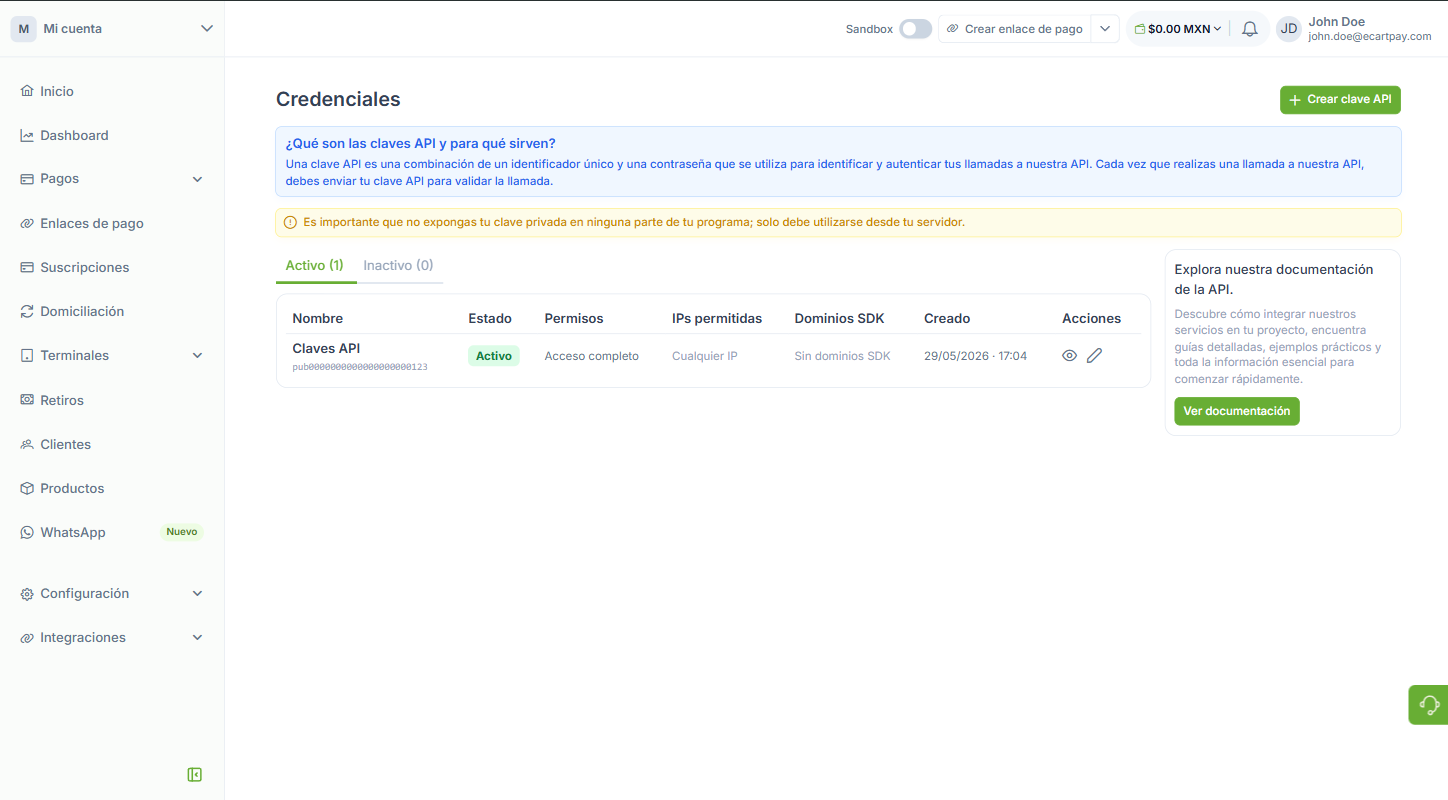
Image placeholder: Ecart Pay credentials panel
4. Configure the provider in Odoo
- In Odoo, go to Accounting → Configuration → Payment Providers
(or Website → Configuration → Payment Providers). - Open Ecart Pay.
- Paste your Public Key and your Private Key.
- Choose the State:
- Test Mode to test with sandbox credentials.
- Enabled to charge for real (production).
- Save. The Webhook Secret and the accounting payment method line are configured
automatically; there's nothing else to do on the Ecart Pay side.
| Field | What to enter |
|---|---|
| Public Key | The Ecart Pay Public Key (matching the mode). |
| Private Key | The Ecart Pay Private Key (matching the mode). |
| State | Test Mode or Enabled (production). |
| Webhook Secret | Generated automatically on save (read-only). |
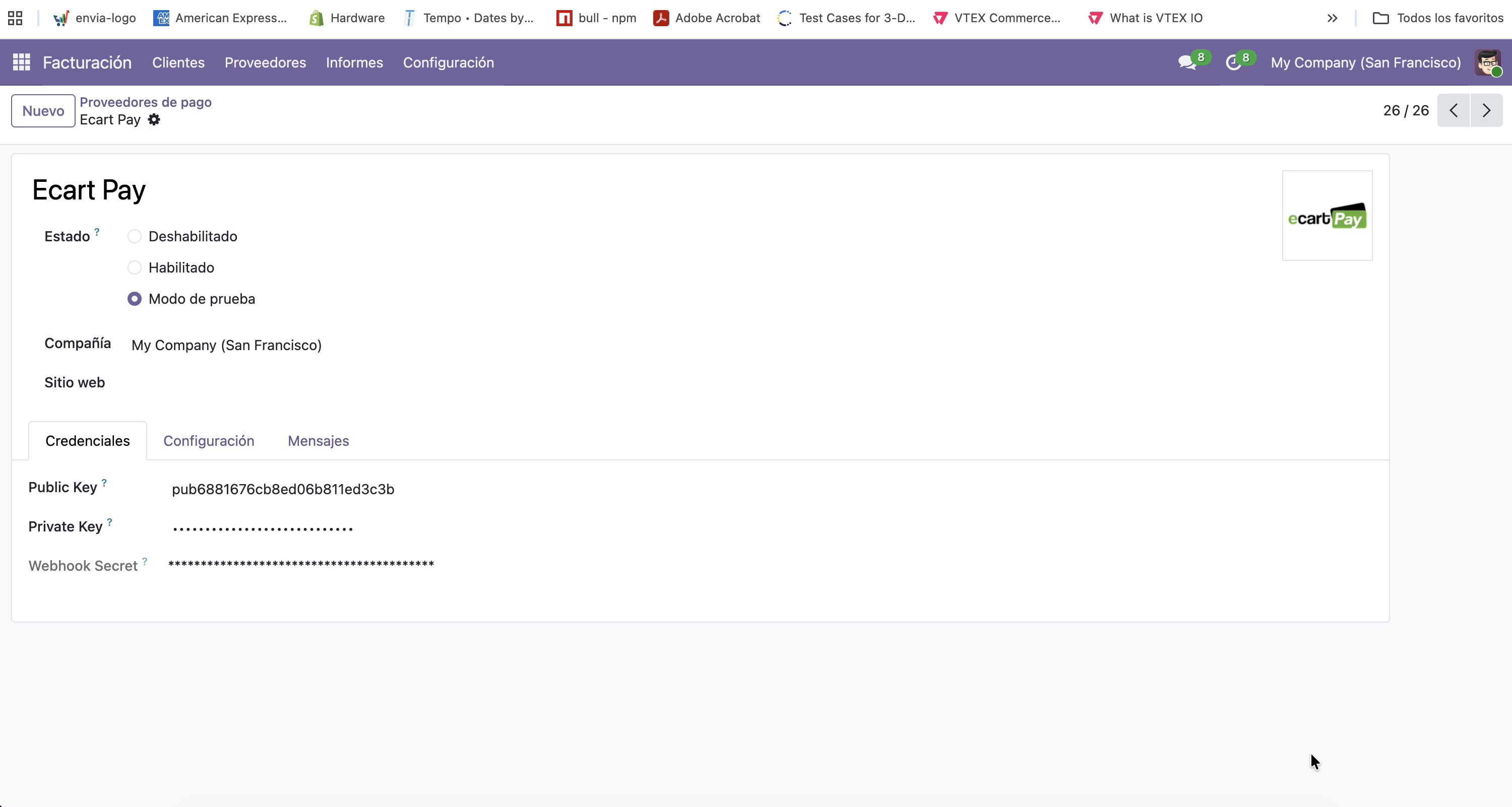
Image placeholder: Ecart Pay provider form in Odoo
5. Publish it on the checkout
- On the provider form, tick Published so it shows up on your store.
- Make sure you have at least one payment method enabled (for example, Card).
- Open your store (
/shop), add a product and go to checkout: you'll see Ecart Pay among the
payment options.
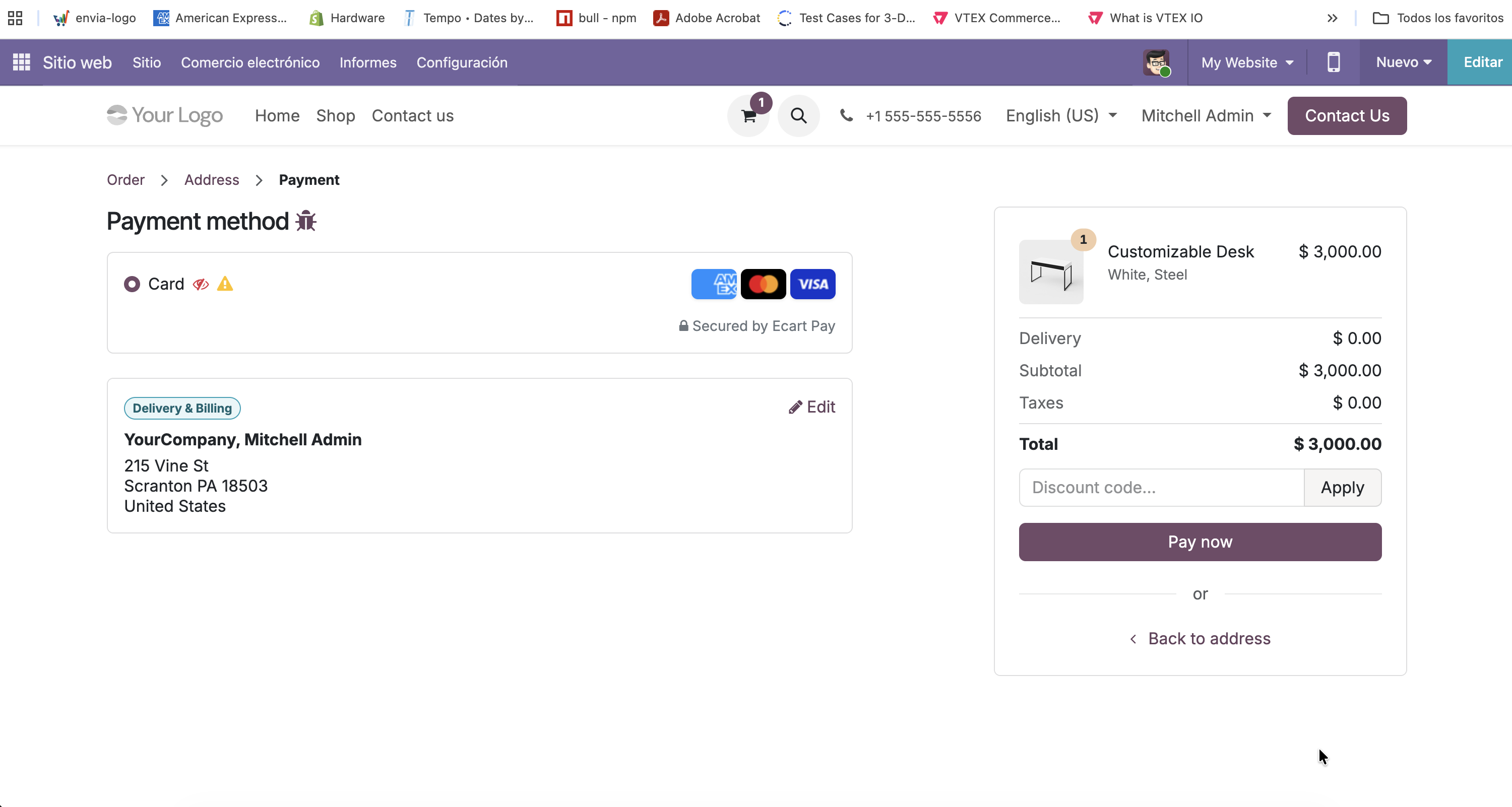
Image placeholder: checkout payment methods with Ecart Pay
6. Run a test payment
- On the checkout, select Ecart Pay and confirm.
- You'll be redirected to the secure Ecart Pay payment page. In test mode the redirect happens
on our sandbox environment (https://sandbox.ecart.com/), so
no real charge is created. - Complete the payment using Ecart Pay's test card details.
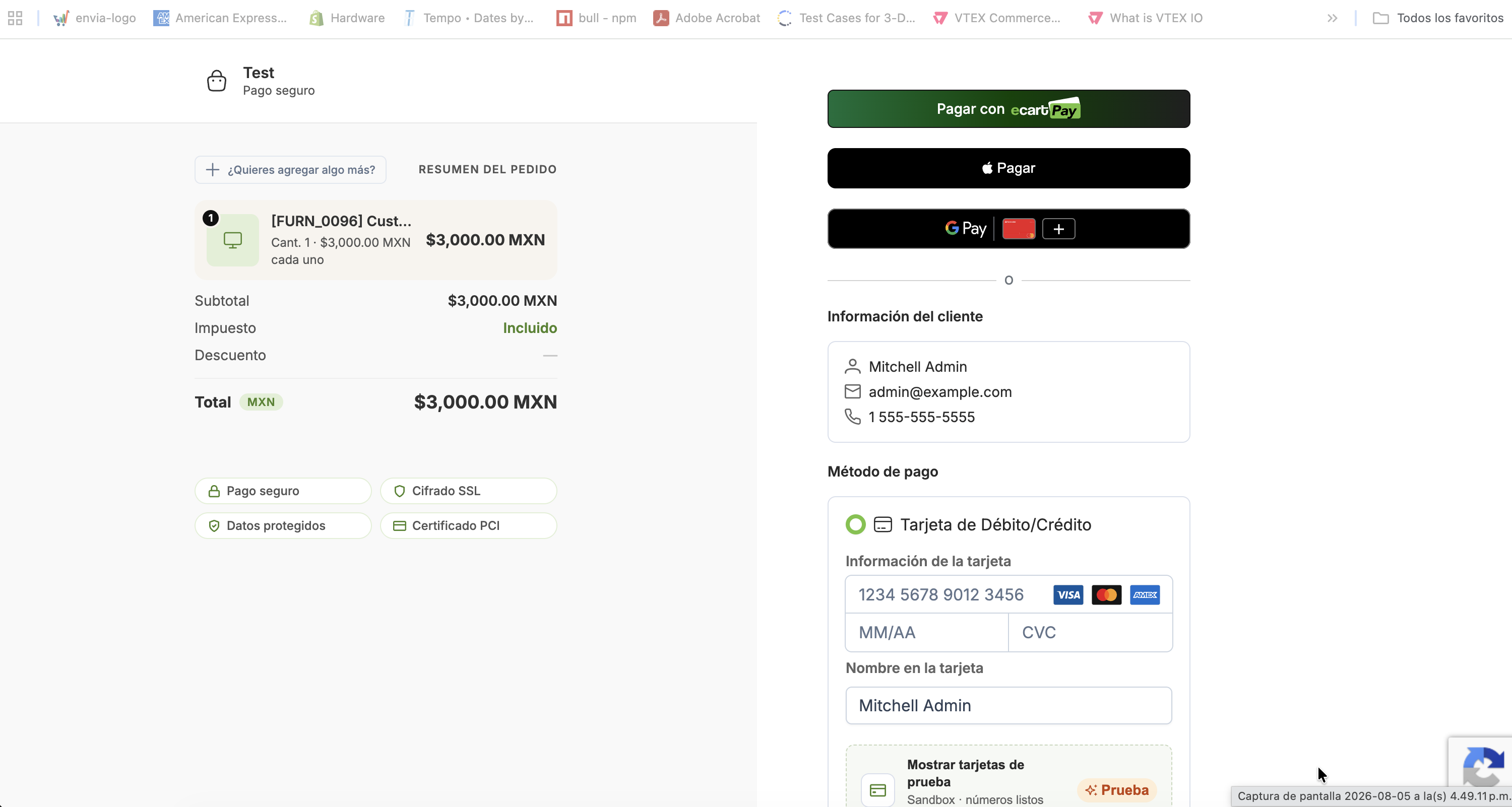
Image placeholder: Ecart Pay hosted payment page
- When you finish, Ecart Pay sends you back to Odoo and you'll see the payment confirmation.
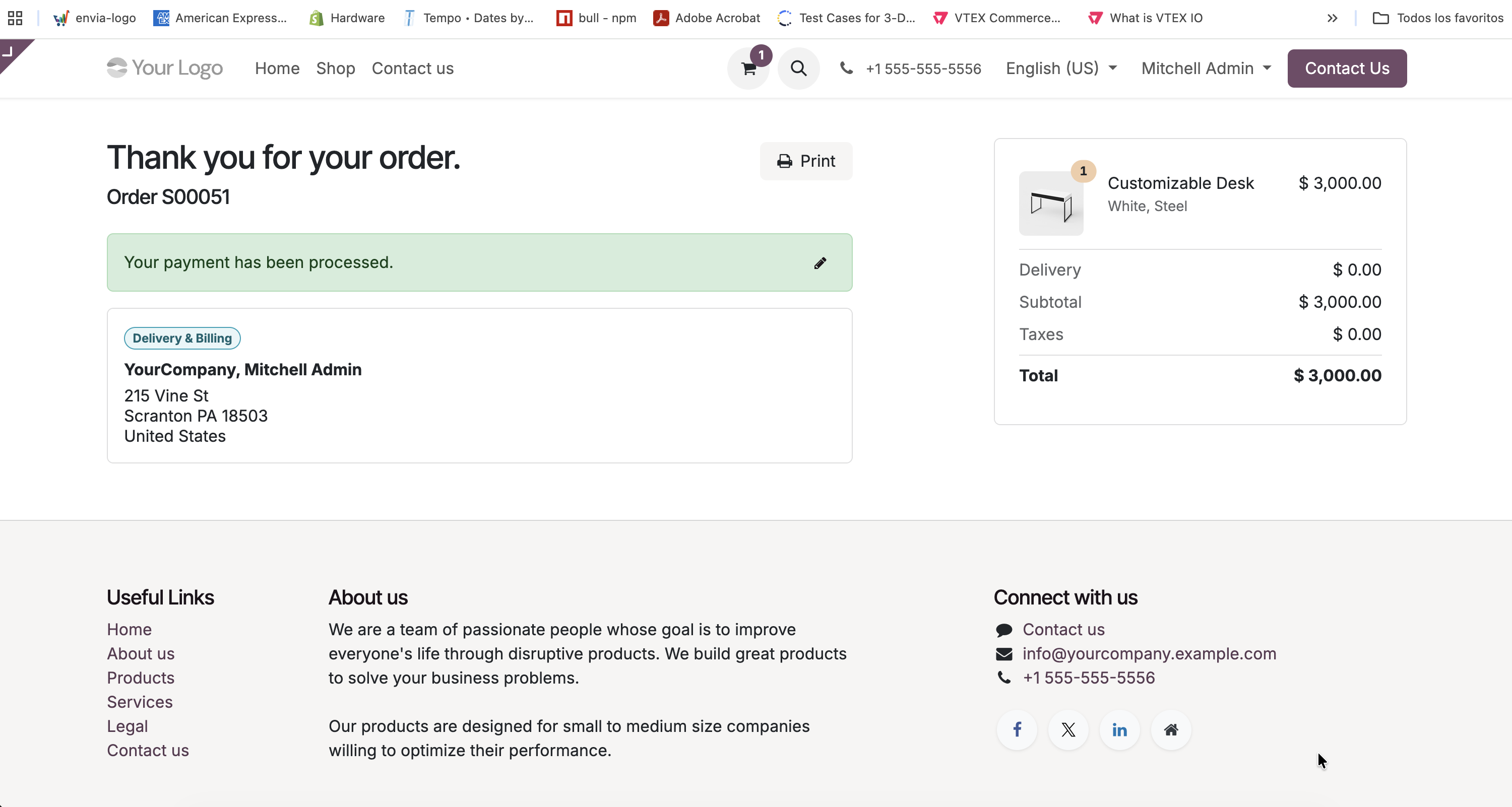
Image placeholder: payment confirmation in Odoo
7. Verify the transaction
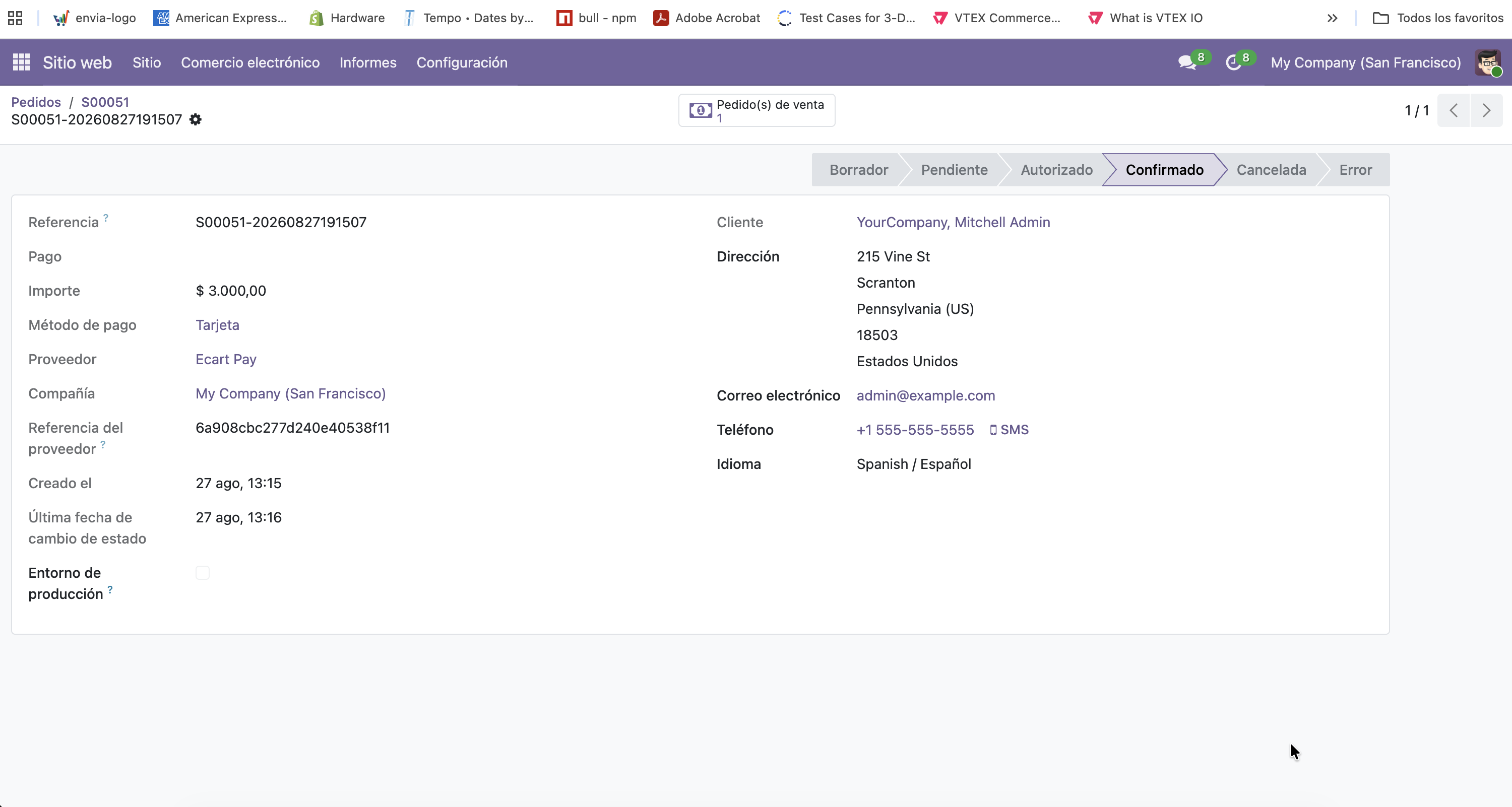
In Odoo, go to Accounting → Customers → Payments or to the related sales order, and confirm
that the transaction is in the Done state, with the order reference and the Ecart Pay order ID.
Image placeholder: transaction detail in Odoo
8. Go live
- Go back to the Ecart Pay provider in Odoo.
- Change the State to Enabled.
- Replace the test keys with your production keys.
- Save. When you switch mode, Odoo refreshes the webhook secret automatically.
9. FAQ
I don't see Ecart Pay on the checkout.
Check that the provider is Published, in Test Mode or Enabled state, and that it has at least
one payment method linked (for example, Card).
The payment went through but the order isn't confirmed.
The order is confirmed when Ecart Pay sends the webhook to your Odoo. Make sure your Odoo is
reachable from the internet (with HTTPS in production). For testing, validate the flow against
the sandbox environment https://sandbox.ecart.com/.
Which currency are payments charged in?
The currency of the order/store. Ecart Pay supports MXN, USD, COP, BRL, ARS, GTQ, CLP, PEN, CAD,
EUR, AUD and INR.
Is it secure? Does it store card data?
The payment happens on Ecart Pay's secure page; Odoo does not store sensitive card data.
10. Support
- Technical documentation:
docs.ecartpay.com - Website:
ecartpay.com - Support email:
[email protected]
Ecart Pay is a registered trademark of Envia. Odoo is a trademark of Odoo S.A. This project is
not officially affiliated with Odoo S.A.
Updated about 1 month ago